
1. T001-Work Order Workflow in Track-It!
Overview
| Date: | March 13, 2015 |
|---|---|
| Author: | Corbin Fletcher |
| Document ID | Release Date | Author | Version |
|---|---|---|---|
| T001-Work Order Workflow in Track-It | 24/09/2014 | Bobby Bennett | v 1.0 |
New in version v: 1.0
1.1. Introduction
Steps and guidelines for the proper workflow of work orders using BMC Track-It. This SOP was written based on Track-It v11.3 but will likely remain unchanged despite newer versions of Track-It.
1.2. Track-It Overview
1.2.1. IT Help Desk
This section give a brief overview of the initiative. Improve end-user satisfaction and resolution rates while reducing costs by allowing your help desk technicians to track their work more efficiently. Justify the need for additional staff through tracking of all tasks. Department Security can segment data so multiple departments can utilize the Track-It! Help Desk to manage their tasks. Facilities, Human Resources and IT Help Desk can all benefit from task management using Track-It! The Help Desk includes LDAP/Active Directory integration, Work Order Templates, Service Level Agreements (SLAs), Work Order Timer, Stop the Clock, Scheduled Work Orders, Scheduled Reports, Parent/Child tickets, Automatic Email to Work Order conversion, Skill Routing, Event Policies, Automatic Prioritization, Automatic Escalation, Email Conversation Management and Notifications.
1.2.2. Asset Management
Reduce costs and wasteful spending on IT assets you thought were lost or did not realize you owned. Automatic asset discovery and auditing gather and record asset information for everything on your network, giving you the ability to take control of your IT environment and make better decisions with complete hardware, software and configuration data about all of your assets. The Inventory module includes popular features such as Asset Discovery, Auditing, Audit on Demand, Unassigned Equipment Inventory and Asset Retirement.
1.2.3. Self Service Portal
Reduce costs by allowing end-users to log tickets and get status on existing tickets through the Self-Service Web Portal. Your users can submit new requests, search for solutions to common problems, view the status of previously submitted work orders, access their asset information or reset their AD password. You can even utilize the Active Directory integration to provide trusted AD authentication for rapid and easy access. Save time and precious resources by helping users to help themselves.
1.2.4. Software License Management
Never waste money on software licenses that you already owned or worry about fines or penalties related to a software audit. Along with the Track-It Asset Management module, Software License Management helps you keep track of and report on the number (and type) of software licenses owned and utilized within your organization. Gain control over your software licensing costs and get access to instant and accurate license information.
1.2.5. Mobile Help Desk
Save time and money by allowing your mobile help desk technicians to update their work orders and enter new ones while on the go. The Track-It! Mobile capability gives technicians easy mobile access to the Help Desk, Asset Management and Knowledge Management modules. Technicians can now update or add work items from anywhere, allowing them to give great service to your users on the move and keep up with their work without having to go back to their desk.
1.2.6. Knowledge Management
Save time and money by utilizing lessons learned from previous help desk tickets. Knowledge management in the Solutions module allows IT staff to build a database of solutions to help save time and money training new IT staff or troubleshooting known issues as well as allowing end users to resolve common issues themselves by giving them the ability to search known solutions in the self-service portal. Solutions can be marked as Public or Private, allowing you to filter which solutions are seen by your Help Desk Technicians and which are seen by your end-users.
1.2.7. Scheduled & Emailed Reports
Save time and money by optimizing your Help Desk and Asset Management operations by regularly monitoring key metrics. Schedule and email reports automatically to keep you and your management up to date on the latest trends in your business. Based on the industry leading Crystal Reports reporting tool, you get the sophistication and flexibility you need to keep track of key performance and capacity data.
1.2.8. Dashboards & Analytics
Reports and dashboards help you save time and money by giving you an instant and visual display of your key performance indicators. Schedule and email important reports for regular metrics reporting in your group or to management. Continually improve your service quality through effective and timely reporting.
1.2.9. Track-It Manuals and Training
Manuals are located at SigerUniversity on the SigerTronic Systems Team Site: Siger Team Site Training documents are stored by Track-It version.
1.3. Workflow
1.3.1. Overview
A work order (WO) goes through various stages (i.e. statuses). During some statuses, key pieces of information must be entered in order to ensure the work order flows smoothly from beginning to end, which includes making sure that all necessary and beneficial information is captured.
1.3.2. New Work Order
Whenever a work order is created, the following pieces of information must be entered. These are considered “required fields” and have an asterisk (*) next to the field name.

Table: The above fields are a requirement for all work orders. Left mouse click the above image for larger view.
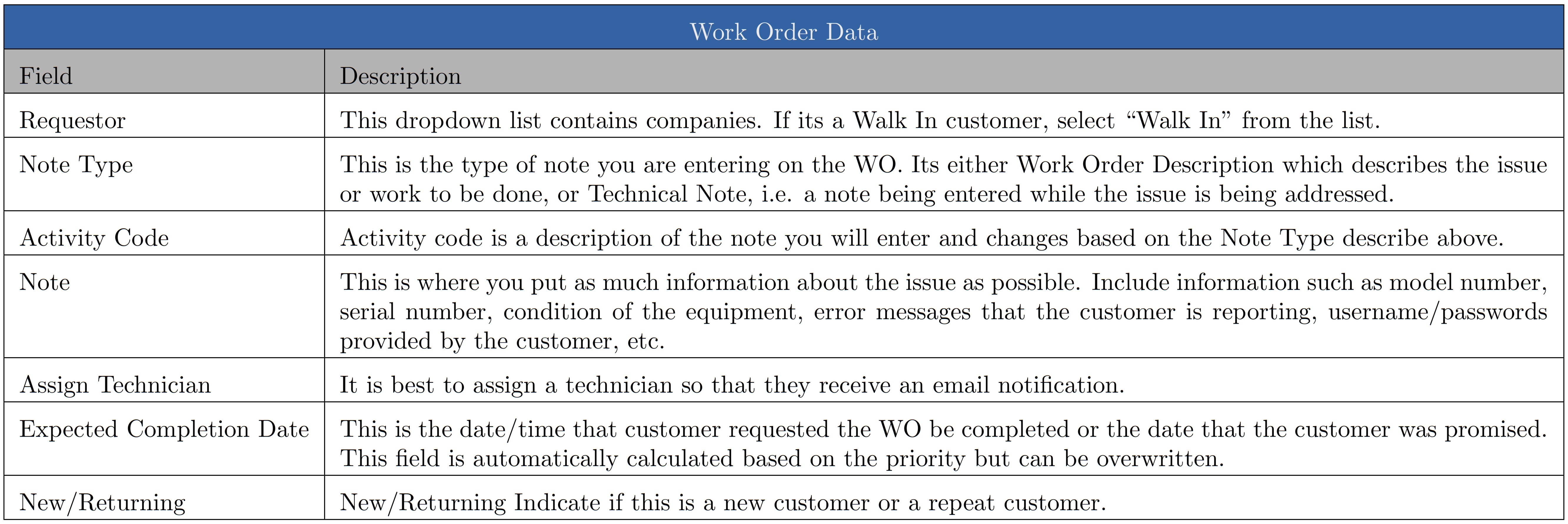
Table: The above fields are not required, but it is highly recommended, that they be completed when each work order is created. Left mouse click the above image for larger view.
Note
The above tables are images, which were created in an alternative program, and included here. This is a work–around because of the limitations (short comings) of the embedded tables native to this program. The other tables (see table in section 1.3.4 for example), which are embedded in code, require scrolling to read all the text in a row that contain large blocks of text. Users should not be require to scroll when viewing a table.
Tip
The above tables can be enlarged by left mouse clicking on the image. Enlarging each table allows for easy viewing and easy reading.
1.3.3. Updating a Work Order
As soon as a technician begins working on a WO, the status should be changed to In Progress.
To add a note to a WO, select Technician Note from the Note Type drop down and then select the appropriate Activity Code. All notes relating to the WO should be entered. Example of notes include:
- Actions taken and the results.
- Any communication with the customer. When email a customer, it is best to email directly from the WO. To facility the email thread, be sure to include your email address as a CC.
- Any internal communication.
- Any relevant photos or documents
- Any parts ordered
Danger
Be sure to check the Private box so that this information is not made available to the customer.
When entering notes, be sure to use proper grammar, language, punctuation and spelling as these notes are viewable by the customers via the web interface. They also can appear when a detailed WO is printed. To include others on all emails sent from the WO, fill in their email address in the CC or BCC fields on the Billing and Additional Fields tab.
If parts are being ordered or you are waiting on a customer, change the status accordingly. The Waiting on Part and the Waiting on Customer statuses will stop the clock. If parts are being ordered, the Vendor Date needs to be completed with the expected arrival date of the parts. If a new Vendor Date needs to be entered, enter a private note giving an explanation and then enter the new Vendor Date. When saving the WO with either of these statuses, you will see the following message.
If a WO has a Waiting Parts status and the parts have arrived, change the status to In Progress and send an email to the technician using the Email Technician option from within the WO. Change the status to In Progress restarts the clock.
1.3.4. Completing a Work Order
The following fields are not required when completing a WO but its strongly recommended.
| Filed | Description |
|---|---|
| Resolution Code | This dropdown list contains possible resolutions. |
| Resolution | This is where you put a quick summary as to what was done to solve the issue. If a customer’s email address is part of requestor assigned to the WO, the customer will get an email with this resolution. Be sure to keep the resolution short, sweet and professional. Examples of good resolutions are:
If the resolution is a standard fix for which a Solution has been setup, click the Solution button and select the appropriate solution. |
| Hours to Bill | Enter the hours to be billed. |
Change the status to Job Completed. During this status, a quality control check will be completed by another tech. Click on the Email Technician icon. Enter the email address of the technician who will do the quality control check. When saving the WO, you will see the following messages about stopping the clock.
1.3.5. Quality Control
If an issue if found during the QC check, add notes as private or send an email to the technician using the Email Technician function. Change the status of the WO back to In Progress. If the work is satisfactory, change the status to Completed – To Be Invoiced.
1.3.6. Invoicing
After invoicing, change the status of the WO to Closed.
1.4. Priorities
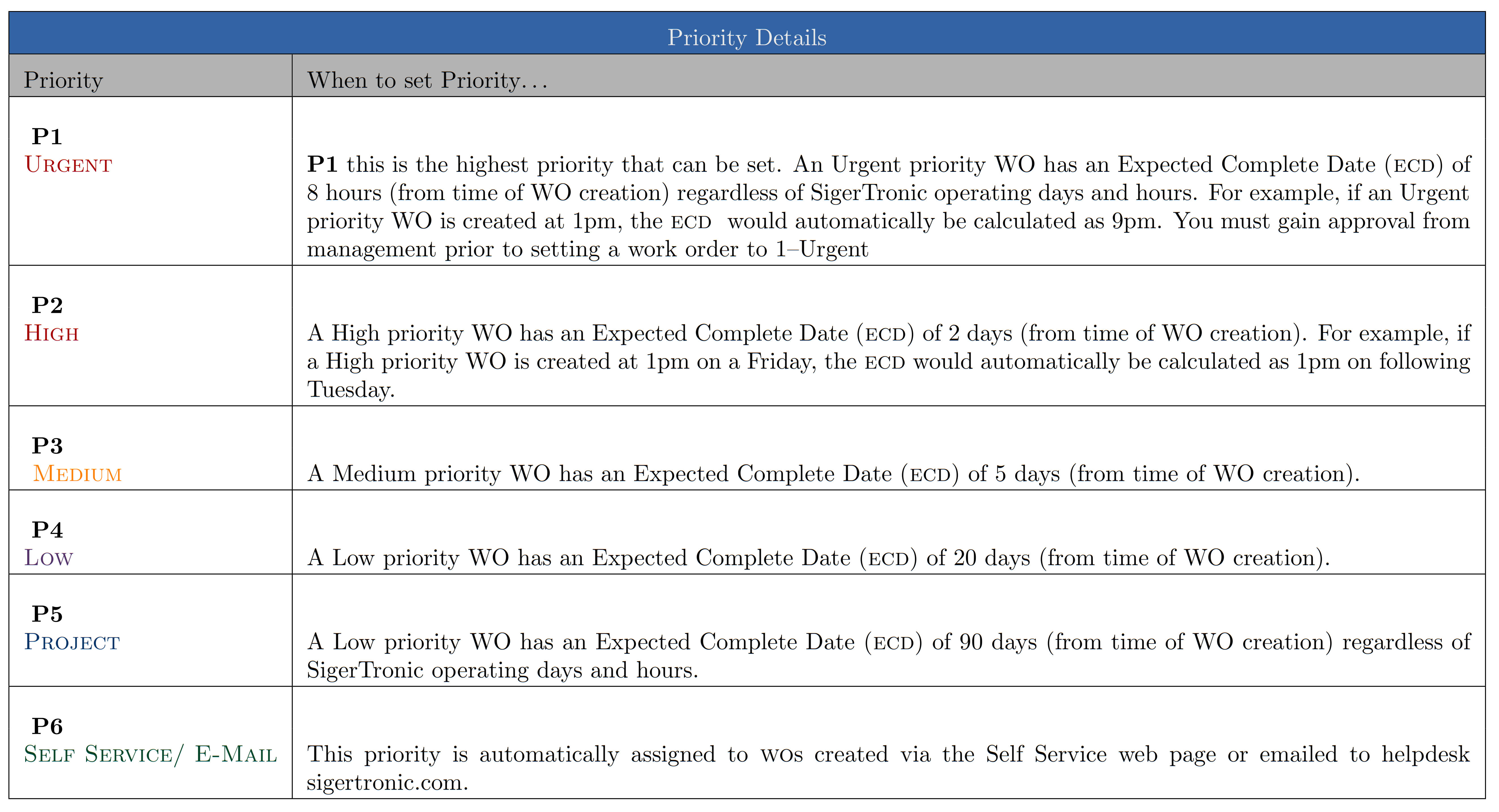
Figure: This table provides details of your priority options. Left mouse click for larger image.
- For all priorities, the ECD is recalculated if the WOs time is paused, changing the status to Waiting Parts or Waiting Materials.

Creative Commons Attribution-NonCommercial-ShareAlike 4.0 International License.