
2. G009–Create a Work Order
Overview
| Date: | March 13, 2015 |
|---|---|
| Author: | Corbin Fletcher |
Contents
| Document ID | Release Date | Author | Version |
|---|---|---|---|
| G009-Create a Work Order | 16/2/2015 | Corbin Fletcher | v 1.0 |
New in version 1.0.1,: Content add 11/2/2015
2.1. Introduction
Customers that come into SigerTronic Systems requesting service must have a work order created for their required level of service. A work order is a start to finish record of the work to be performed. Work orders are created for repairs on physical machines, and all customer primes work. A work order (WO) goes through various stages (e.g., statuses). During some statuses, key pieces of information must be entered in order to ensure the work order flows smoothly from beginning to end, which includes making sure that all necessary and beneficial information is captured.
2.2. Processes
- Log into Track-It! HelpDesk with your user name;
- Click New Work Order button this brings up a blank work order in a new window.
- Click the Requester drop down menu, begin typing the customers, and choose the client from the list, or choose Walk In;
- Populate the Phone number field with the Walk In customers correct phone number;
- Set the appropriate Priority;
- Click the Type drop down box and choose the correct type (e.g., software, labor, networking, etc.);
- Click Sub Type and choose the correct sub type;
- Next assign the work order to the correct Technician;
- Next add the contact person’s name;
- Populate the Summary filed with a short but accurate description of the work to be performed;
- The Note field is where you added a detailed account of the services being requested. If the customer has delivered his/her laptop, the lap top’s charger, and laptop sleeve, you are required to list all these items in the Notes field. You must be detailed, specific, and complete when writing your note. While populating the Notes field you must provide sufficient detailed information and there is no room for vagueness or ambiguity in your description.
- Click the Add Note button;
- The second work order note is always the fact that our customer has paid the required $45.00. This is a second and separate note. This second note must also include Quickbooks invoice number. You are required to generate a Quickbooks invoice for the $45.00 the customer paid;
- Before moving on to the next step review your work carefully;
- Save and Close;
- Next, re-open the Work order, and print two pages. One page is singed by the customer, and the second copy is singed by the SigerTronic Systems employee. Further, the copy of the work order, which was signed by the customer, is retained by SigerTronic Systems and the customer is provided with the copy that the SigerTronic employee singed. This creates a signed service agreement between SigerTronic Systems and our customer(s).
2.3. Scope
All service that is requested by customers must have a work order created. This SOP provides employees, who are not familiar with the process, the information need to complete this task.
See also
For additional detailed information see SOP T001-Work Order Work Flow in Track-it.
2.4. Responsible Personnel
Any team member who is responsible for invoicing customers could be required to seek payment on unpaid invoices. This process is primarily the responsibility of one of our sales floor team members.
2.5. Required Fields
| Filed | Description |
|---|---|
| Summary | A brief one line summary of the issue or task. Enough information should be provided so that anyone looking at a list of issue will be able to have an idea as. to what the WO is about. Examples of bad summaries are “Printer Issue” or “Computer Problem” or “Check System”. Better summaries would be “HP OfficeJet 8600 not printing” or “Dell Dimension 3100 booting issues”, or “Perform full system check and provide recommendation”. |
| Priority |
|
| Note: You must gain approval from management prior to setting the priority to 1-Urgent | |
| Status | Status should be changed by technicians as the WO progresses. When a WO is opened, the default is Open. Other statuses are
|
| Type | This is the type of issue or request, e.g. Hardware, Software, Network, Telecom, Quote, etc. |
| Subtype | Each type is broken down into subtypes. E.g. Hardware has subtypes such as Computer, Printer, Router, Keyboard, etc. |
| Contact Person | Enter a Point Of Contact (POC). Be sure to include a phone number and email address if possible. |
Todo
I should consider converting the above table to the table I have bellow.
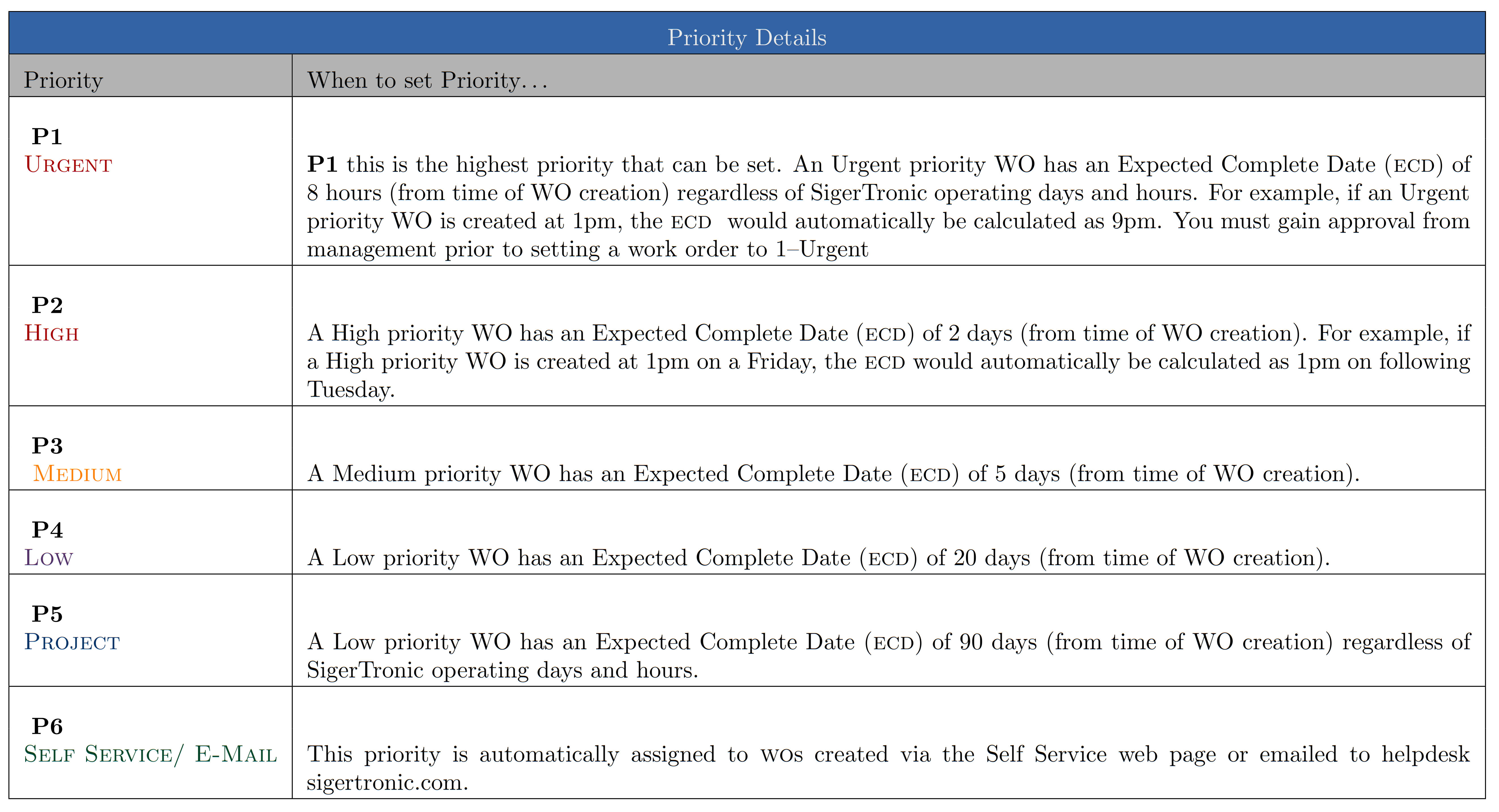
Figure 1: This table provides details of your priority options. Left mouse click for larger image.
2.6. Definitions
- Track-It!:
- Is our IT help desk ticketing, customer service, issue tracking, system used by all SigerTronic Systems employees.
- Work Order:
- Is a start to finish record of the work to be performed.
- Technician:
- SigerTronic Systems employ’s computer repair technicians who are skilled professionals. When you are creating a work order you must assign the work ordered to the correct technician (see process #8, in section 1).
2.7. Addational Information
Warning
This is an important section and it should not be over looked.
- When receiving personal property from a client–for service by SigerTronic System—all components must be physically labeled prior to delivering the items to the technicians for service. Additionally, each item is articulated in the Notes section of the Work Order. If a customer delivers a laptop and the lap top charge for service, both items must be listed in the Notes section of the work order, then they are physically labeled, finally the items can be delivered to the technicians. Labels are provided to you for your use.
- All walk in customers (requesting repairs or service) pay a $45.00 fee which is added to the work order as a second note. This fee is paid at the time they deliver their personal items for repair. The only customers who are exempt from the $45.00 fee are commercial clients who have open accounts with SigerTronic Systems.
- This task requires our team member to generate a Quickbooks invoice (see procedure #13 for details).
See also
Additionally, you can obtain SOP G002-Create an Invoice for detailed information on how to create a Quickbooks invoice.

Creative Commons Attribution-NonCommercial-ShareAlike 4.0 International License.